For clients
Client guide: checking fixes and signing off
For clients. Follow what you sent on Your feedback, answer the team's questions, and when a fix is ready say Yes, it's right or Not yet.
You reported it, so you decide when it's fixed. Nothing is marked done until you say so.
Follow what you sent
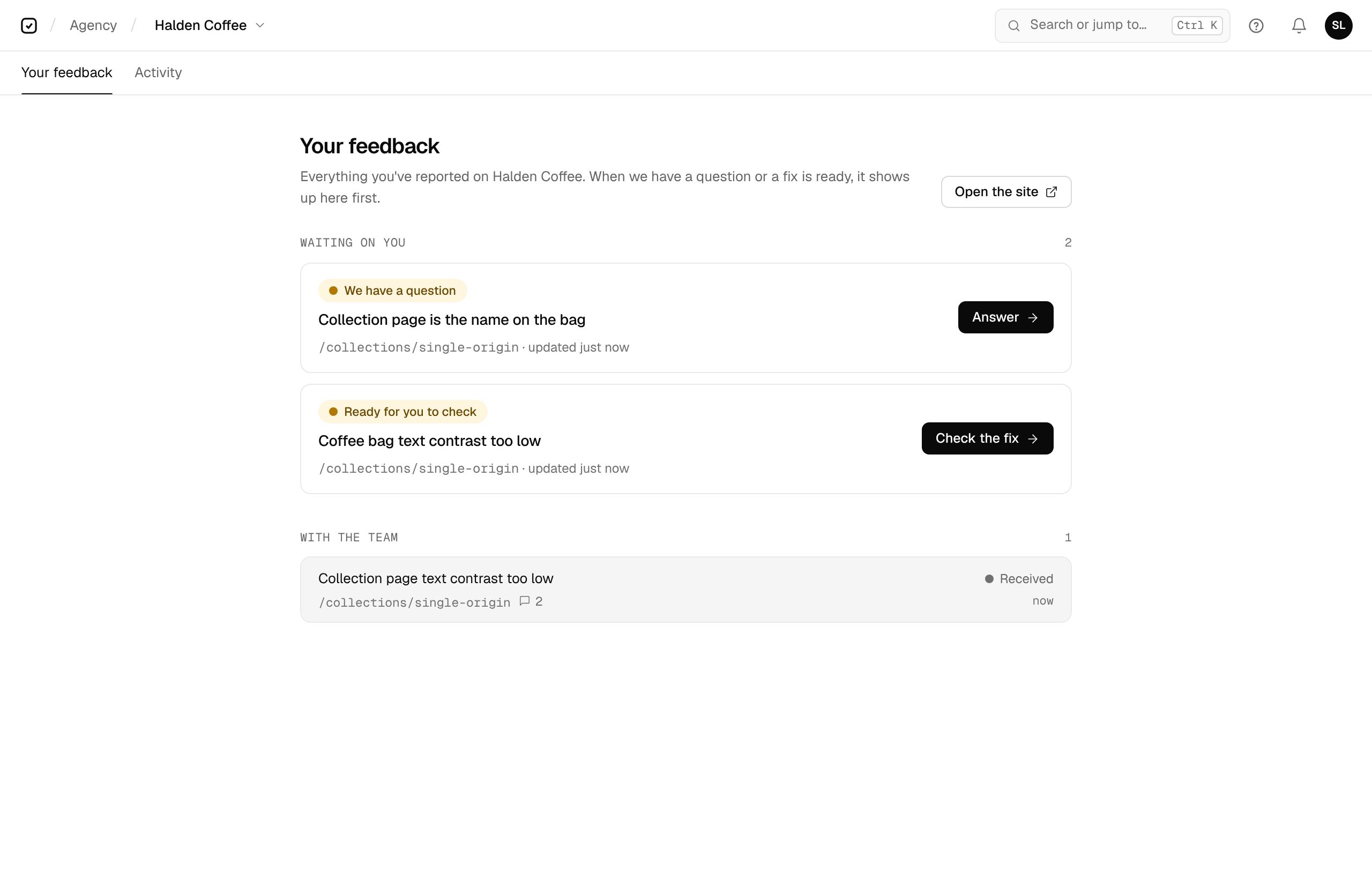
Your feedback lists everything you reported, with a plain status. What's waiting on you comes first. Board at the top shows the same reports in columns instead: Received, We have a question, Being fixed, Ready for you to check and Done. Open a card to answer or check a fix.
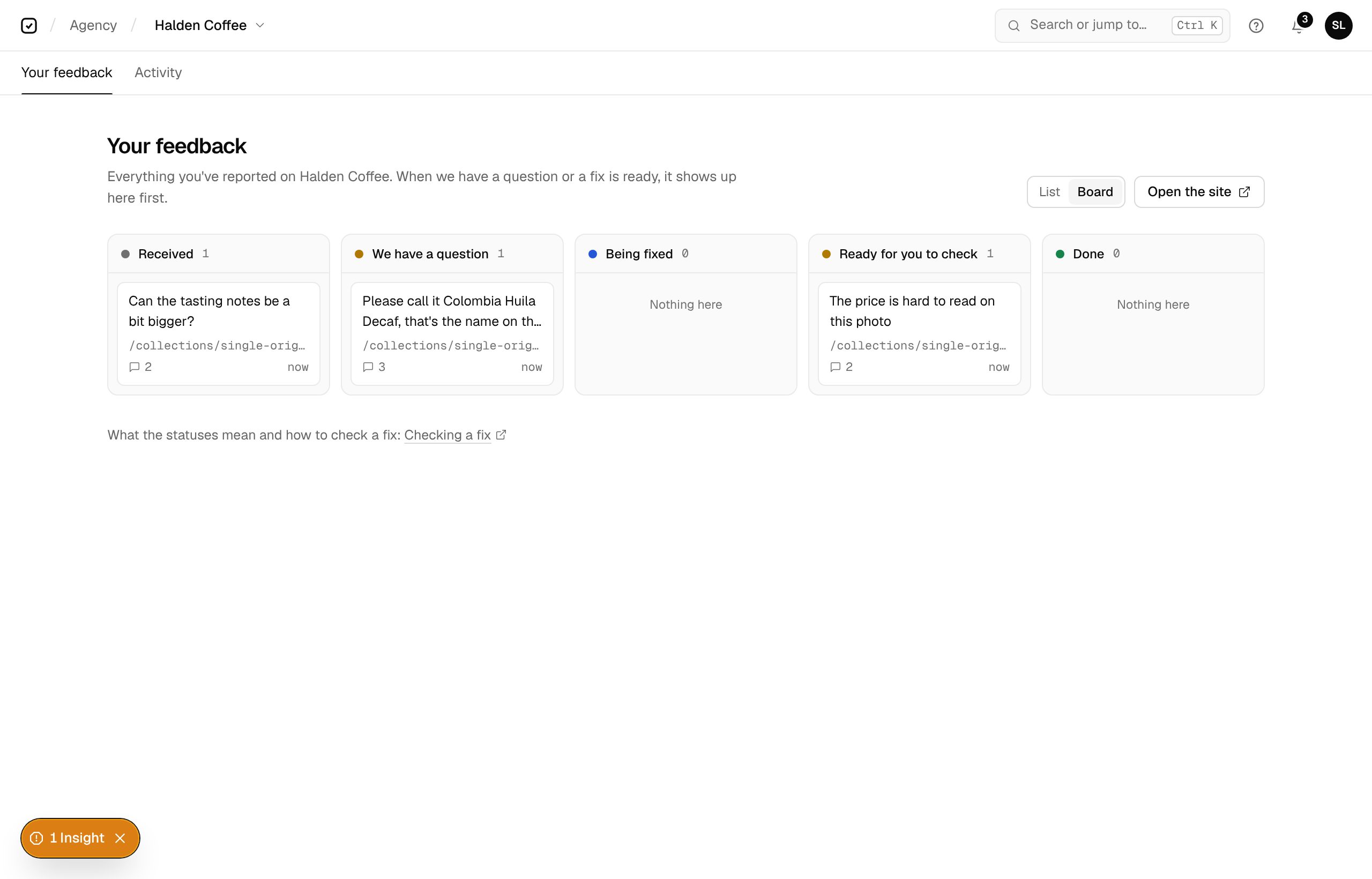
| Status | What it means |
|---|---|
| Received | The team has it. |
| We have a question | The team needs a word from you. Press Answer. |
| Being fixed | Someone is on it. |
| Ready for you to check | A fix is ready. Press Check the fix. |
| Done | You confirmed it. |
| Closed | Closed without a change: you said it's no longer needed, or the team decided not to change it and says why in the conversation. |
You get an email when the team asks a question or a fix is ready, so you don't need to keep checking.
Answer a question
Open the report and write in the conversation at the bottom. The team gets an email. You can add a picture there too.
Check the fix
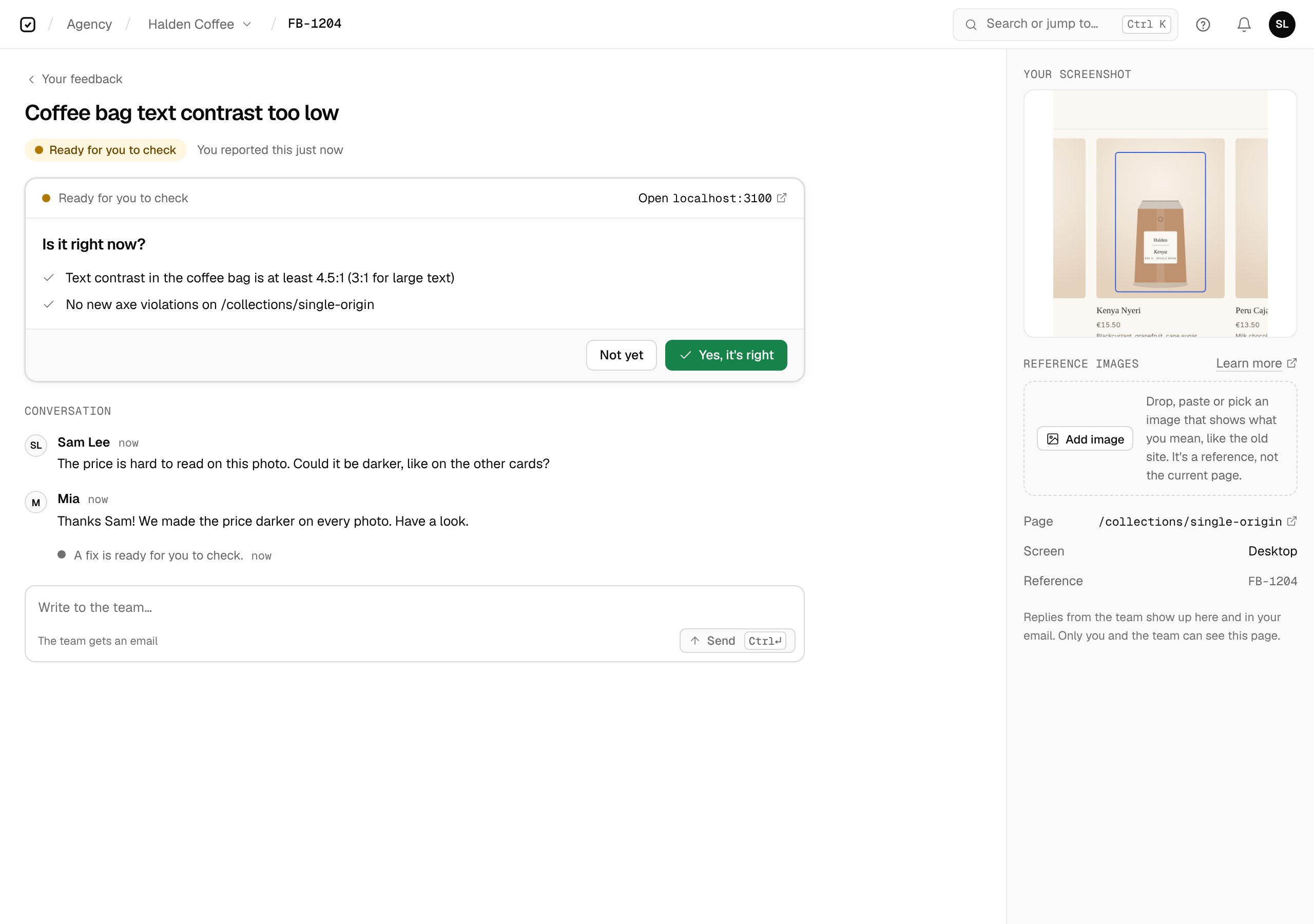
- 1.Press Check the fix. The report shows You asked with your own words, and a link to open the page. What the team checked is folded under What the team checked, if you want to see it.
- 2.Open the page and look at it, at the same screen size you reported (on your phone if you reported it on your phone).
- 3.Choose:
- Yes, it's right: it's done. Thanks!
- Not yet: say what's still not right. It goes back to the team with your note.
Close a report yourself
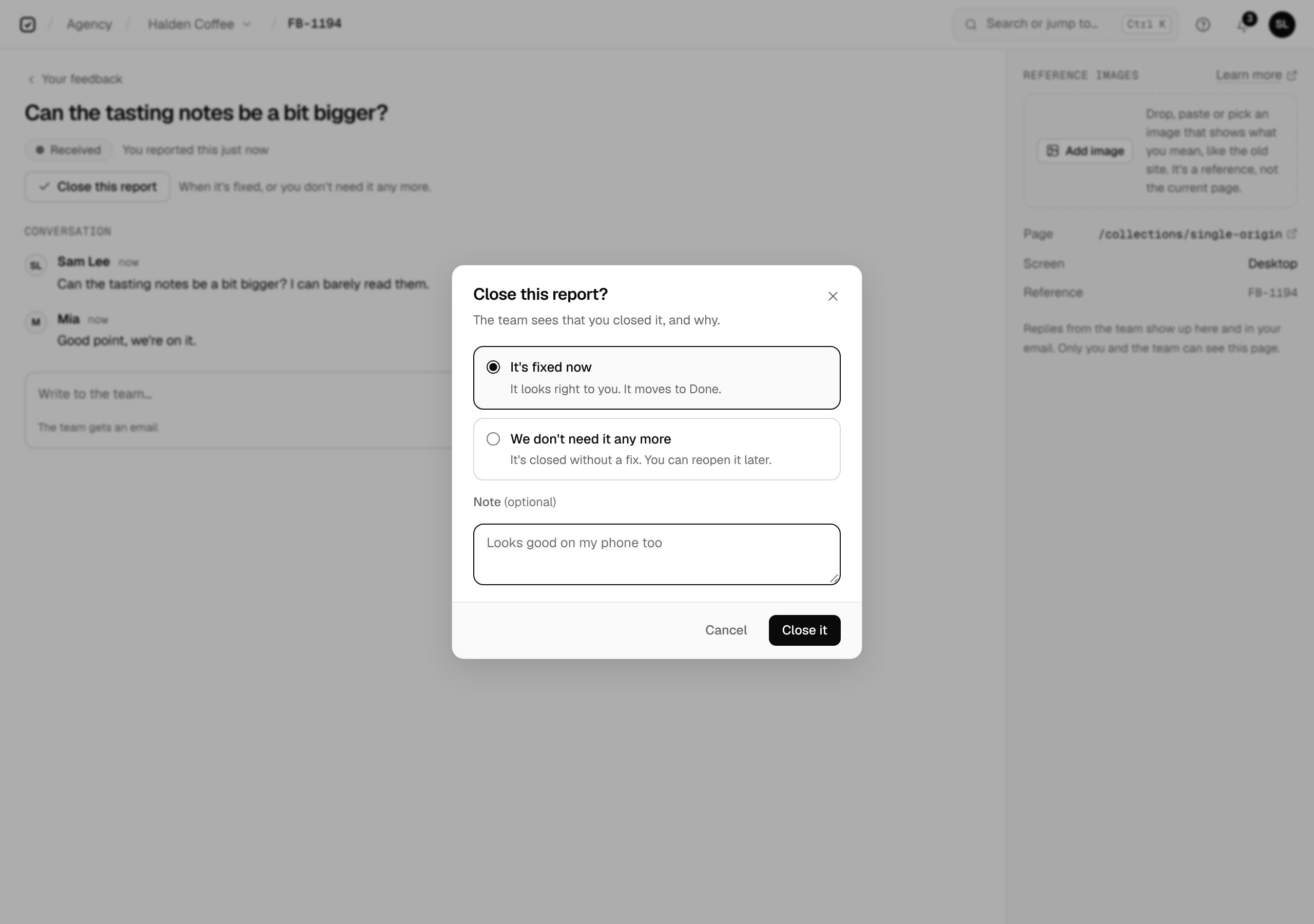
You don't have to wait for Ready for you to check. Open the report and press Close this report, at any time:
- It's fixed now: it looks right to you. It moves to Done.
- We don't need it any more: it's Closed without a fix.
Add a note if you like. The team sees that you closed it, and why. Changed your mind, or it came back? Press Reopen on the closed report and say what's wrong: it goes back to the team as Received.
You can only close your own reports. A report someone else sent stays theirs to close.
With the Chrome extension, you can do the same right on the site: click your pin and press Close at the top of its card, then It's fixed or Not needed.
Or check it right on the site
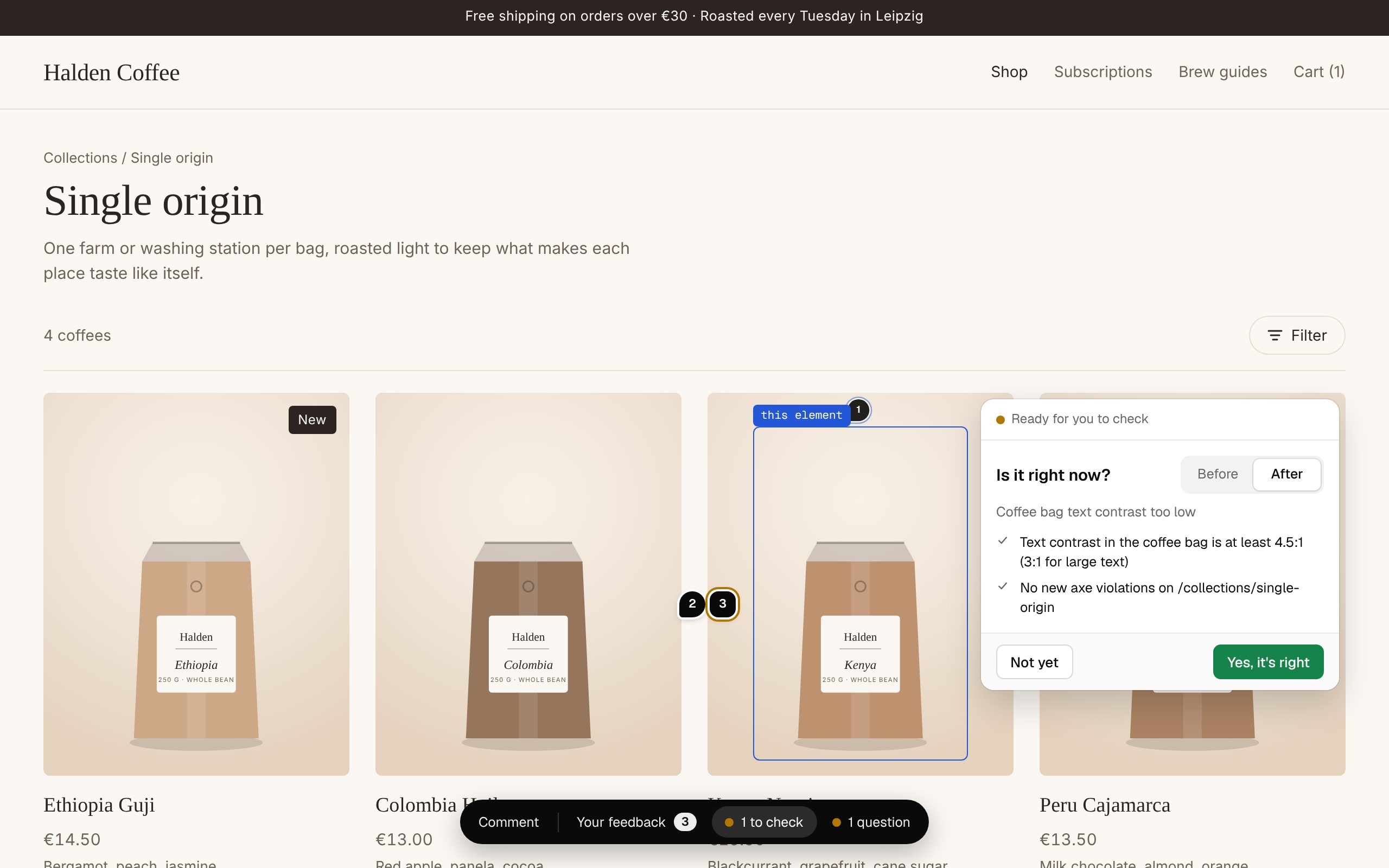
With the Chrome extension, or the site opened from Your feedback, the bar shows 1 to check when a fix is waiting on that page. Press it: you see You asked with your own words. Look, then choose Yes, it's right or Not yet. Before / After flips between your screenshot and the page now. Click (or tap) your screenshot to see it full size: the pins and comments on the page step aside until you close it. Tap the image to zoom in.
Good to know
- Not sure? Choose Not yet and say what you're unsure about. The team would rather hear it than close something that isn't right.
- Using Claude? If you follow your feedback from Claude, ask it to close or reopen a report: it uses the same two choices and the team sees it as yours, via Claude.
- Something new? Leave a new comment instead of adding it to an old report, so each thing gets its own fix.