Running pinprompt
Operator console Beta
For whoever runs a pinprompt server for other agencies. See every workspace's plan, seats, Claude spend and Stripe status, change a plan, give one free, extend a trial, set limits or suspend a workspace with an audit log, open a read-only support view as one of a workspace's people, follow sign-ups, activation, retention and the agent loop week by week (with a Monday email), get error reports in Sentry, and point an uptime checker at /api/health.
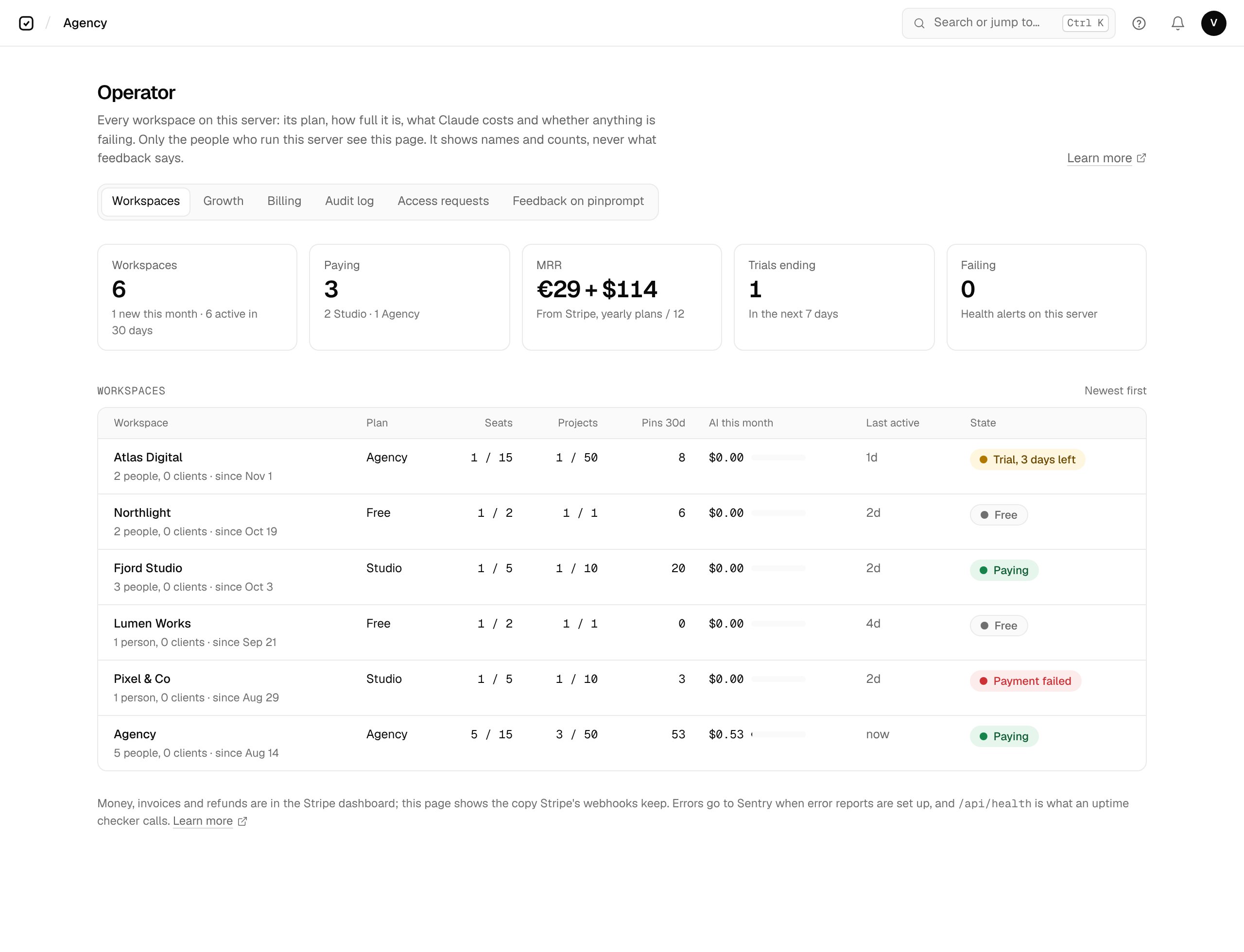
When one pinprompt server hosts several agencies, the people who run it need one place that shows all of them. That place is Operator (/operator). It lists every workspace on the server with its plan, how full it is, what Claude costs it this month, its Stripe status and anything that keeps failing. Only the server's operators see it. Everyone else, including the owners of other workspaces, gets a "page not found".
Who is an operator
Operators are the people listed in PINPROMPT_OPERATOR_EMAILS, a comma-separated list, plus PINPROMPT_OWNER_EMAIL. Each one must also be in the server's first workspace, the one that set the server up. Someone who signs up with a listed address gets a workspace of their own, and that doesn't make them an operator. When nobody listed is in that workspace yet, its owners are the operators. So on a server that hosts other agencies, set PINPROMPT_OPERATOR_EMAILS: otherwise every owner of the first workspace sees every workspace.
No button in the app makes someone an operator. Only the server's settings can, so a customer account can never give itself this access. The console also isn't open to agent tokens, extension tokens, review links or MCP.
Operators also approve access requests and triage Feedback on pinprompt. Both are linked at the top of the console. To open it, use Operator in the account menu, Workspace settings → Operator, or search for "operator" in Ctrl K.
What the list shows
| Column | What it counts |
|---|---|
| Plan | The plan that applies now. A trial that has ended counts as Free. |
| Seats | Team seats used out of the plan's seats (clients and agents are free). It shows one number when the plan has no limit. |
| Projects | Active projects out of the plan's limit. |
| Pins 30d | Feedback pinned in the last 30 days. |
| AI this month | Claude spend this month. The bar fills toward the workspace's cap or the plan's allowance, whichever is lower, and turns amber at 90%. |
| Last active | The last thing anyone or any agent did in the workspace. |
| State | Suspended, Payment failed, Cancels at period end, Paying, Free of charge, Trial (with the days left), Trial ended, Free, Custom, Internal, or Paid plan, not billed (Studio or Agency set by hand with no comp, no trial and no Stripe subscription: it gets the plan without paying, so give it a comp or have it pay). The health alerts that are failing for that workspace appear under the state. |
The tiles on top add these up: how many workspaces there are and how many are new this month, how many pay and on which plan, MRR per currency, trials that end in the next 7 days, and how many health alerts are failing, the server's own included.
The numbers come from what pinprompt already stores. Nothing extra is tracked for this page, and nothing is sent anywhere.
A workspace
Click a workspace to see:
- its plan, any extra seats, and when the trial ends;
- Billing: the Stripe subscription's status, plan, monthly amount and next renewal, with Open in Stripe;
- People: the owner, team and clients, whether each takes a seat, and when they joined and were last seen;
- Projects: whether a site is set, and pins in all, in 30 days and still open;
- Agents: each agent and when its token was last used;
- the account timeline: plan changes, the workspace being created or renamed, the Claude cap and retention, projects created or deleted, integrations connected and people joining. It does not show what happens to feedback.
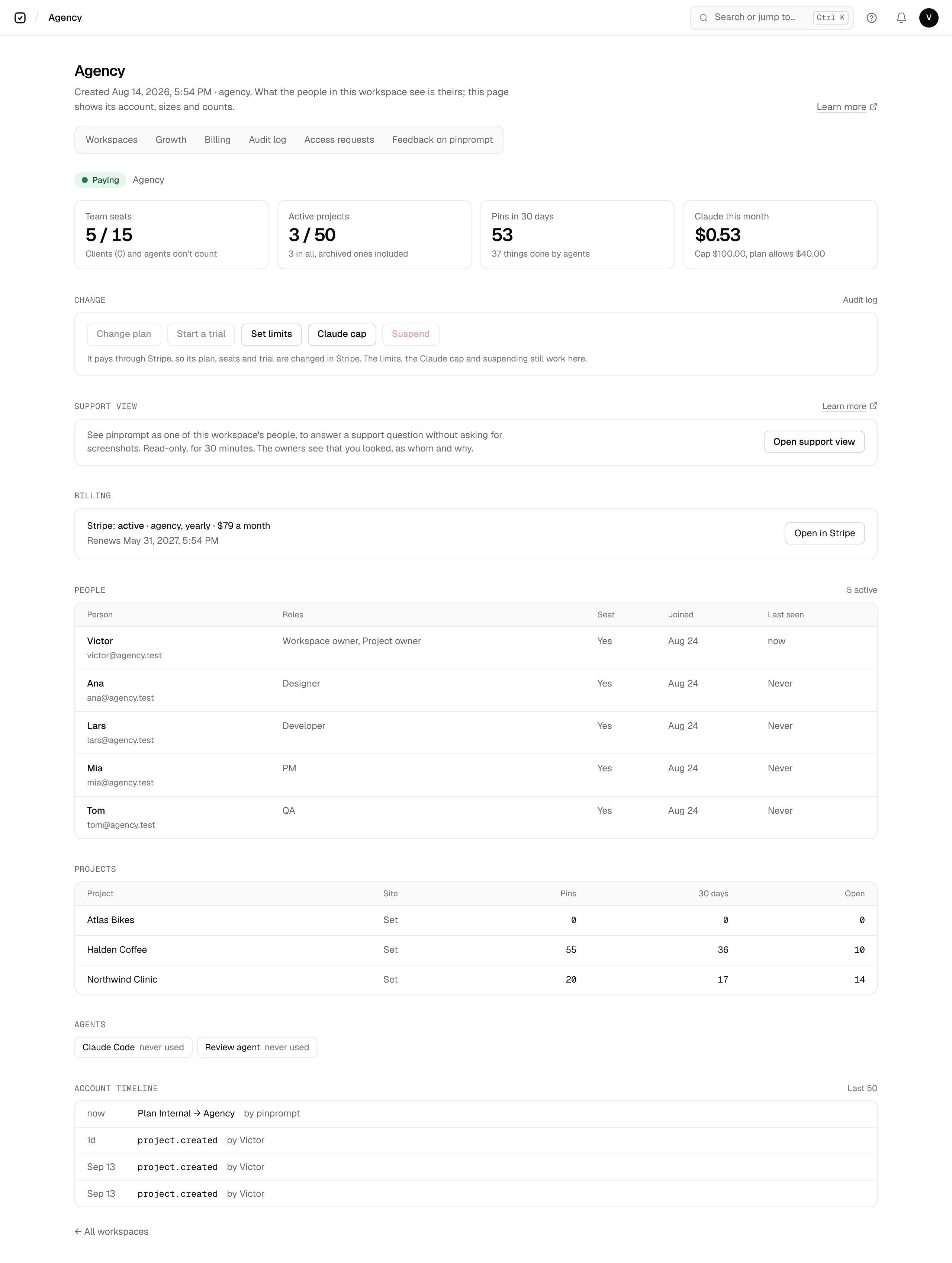
The console shows names, emails and counts. It never shows what feedback says: no titles, notes, comments, screenshots or recordings.
Changing a workspace
Under Change on a workspace's page:
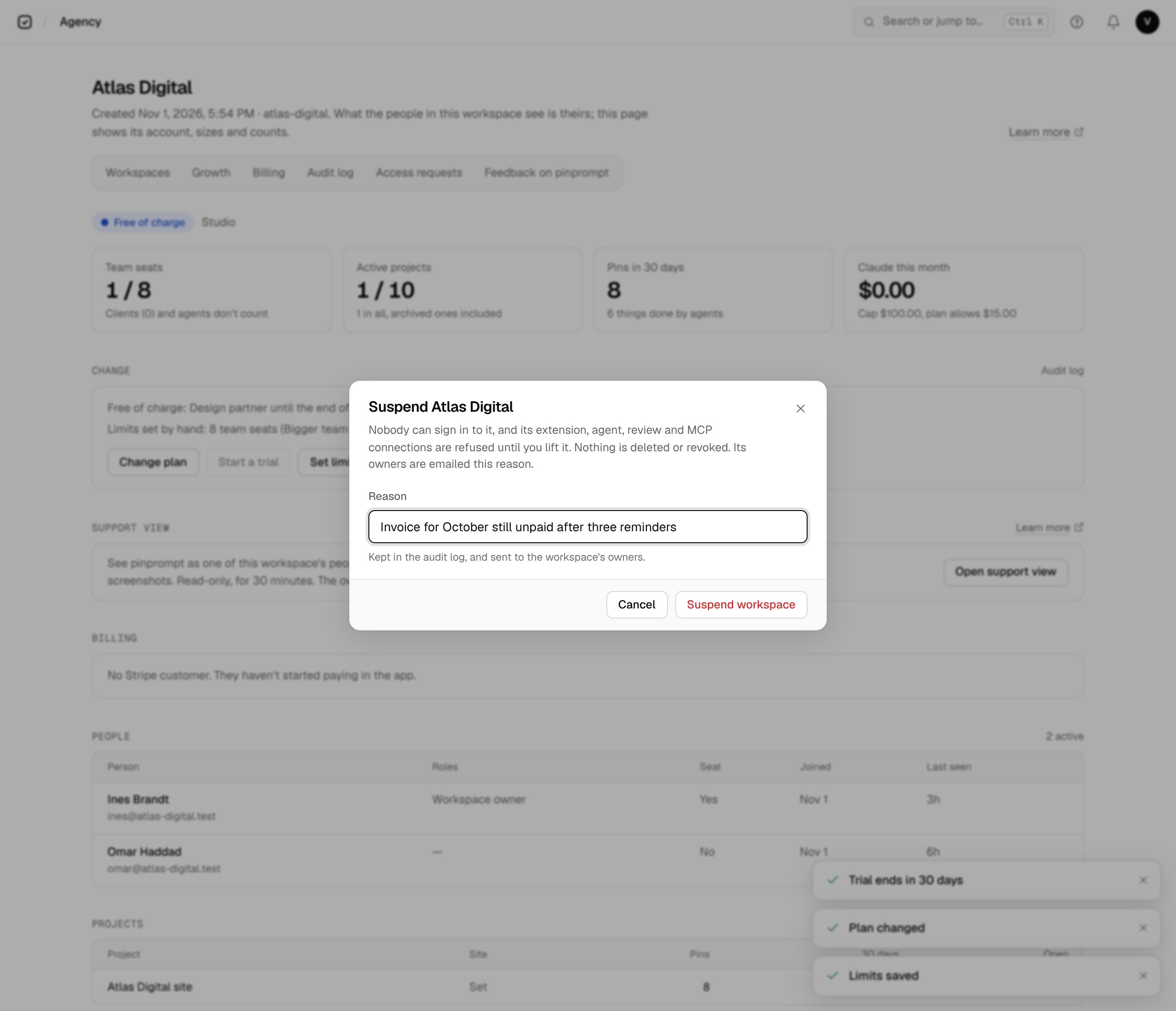
| Button | What it does |
|---|---|
| Change plan | Puts the workspace on a plan now, with extra seats on Studio or Agency, and ends any trial. Tick Free of charge to give Studio or Agency without paying (a comp). A comp stays when a Stripe subscription ends; paying for a plan ends it. |
| Start a trial / Change trial | Sets the trial of a Studio or Agency plan to end 1 to 90 days from today, or 0 to end it now. When it ends the workspace counts as Free. Nothing is deleted. |
| Set limits | Sets team seats, active projects or Claude dollars a month by hand instead of the plan's, higher or lower. Leave a field empty for the plan's. Every limit check uses them. Only on a server with plans on. |
| Claude cap | Sets the workspace's own monthly cap on Claude drafting (0 for none). Its owners can change it again; to hold a ceiling they can't raise, use the Claude limit under Set limits. |
| Suspend / Lift suspension | See below. |
Each one asks for a reason, writes an event with your name, and shows on the workspace's timeline and in the [audit log](#audit-log). The workspace's owners see the change, not the reason, under Workspace settings → Plan and usage. A workspace that pays through Stripe follows Stripe, so its plan, seats and trial are changed in Stripe, and pinprompt follows. Limits, the Claude cap and suspending still work for it.
The plan script (pnpm --filter @pinprompt/core plan:set) still works from a terminal (plans).
Suspending a workspace
Suspend stops a workspace from being used, for example for a payment that never came or a report of abuse. Until you lift it:
- nobody can sign in to it, and anyone already signed in is signed out of it (someone who is also in another workspace keeps that one);
- its extension connections, agent tokens, review links and MCP connections are refused, and its invites can't be accepted;
- updates from GitHub, GitLab, Bitbucket, Azure DevOps, Jira and the other trackers are ignored (answered, not applied, and not replayed later);
- what it would send out waits: Slack, Teams, webhook and tracker deliveries, notification emails and Slack digests aren't sent, and go out once the suspension is lifted (notification emails older than their usual window are dropped);
- Claude isn't called (drafts use the free rule-based drafter), and a running fix round stops;
- nothing is deleted or revoked: projects, feedback, people and tokens are kept, so Lift suspension brings everything back as it was. An invite into it stays pending until then.
Its owners get an email with your reason when you suspend it, and another when you lift it. Someone who asks for a sign-in link gets an email saying the workspace is suspended instead of a link, and an older link is refused with the same message. The server's own workspace, the one the operators work in, can't be suspended.
Suspending doesn't touch Stripe: a paying workspace's subscription keeps running, and its owners can't open Manage billing while they can't sign in. To pause or cancel what they pay, do it in Stripe (Open in Stripe on the workspace's page).
Support view
To answer a support question ("why can't Ines see the pins on checkout?") without asking for screenshots, an operator can see pinprompt as one of a workspace's people. On the workspace's page in the console, Support view → Open support view asks whom to see it as and why. The app then opens as that person sees it: their projects, inbox, items and settings, in their role.
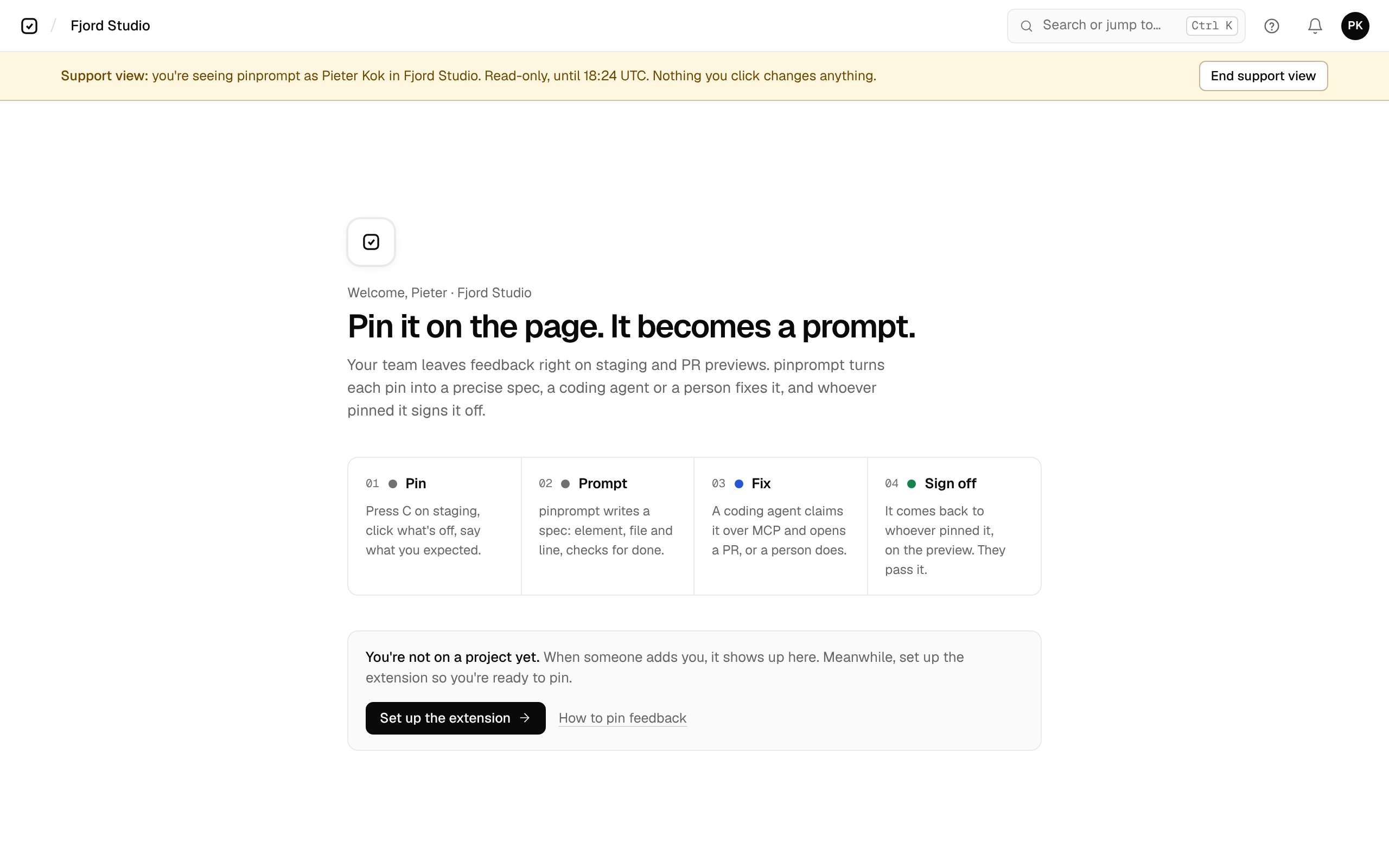
- Read-only. Nothing can be changed, sent or connected: no comments, status changes, invites, settings, tokens, review links or MCP connections. The server refuses each change, not just the buttons, and answers This is a read-only support view.
- 30 minutes at most. A banner on every page says whose view it is and when it ends. End support view goes back to the console. Opening another support view, or signing out, ends the one before.
- Only next to your own session. The view lives in a cookie of its own that works only with the operator's own sign-in in the same browser, and only while they are still an operator.
- The owners see it. Each support view is in the audit log with the operator's name and reason, and the workspace's owners see who looked, as whom, why and for how long under Workspace settings → Support access.
- Not for a suspended workspace (lift the suspension first), and not as another operator.
Growth
Growth (/operator/growth) shows how pinprompt is doing across every workspace on the server, week by week. Weeks start on Monday (UTC), and the current week is shown in grey because it isn't over. Every number is counted from what pinprompt already stores: workspaces, access requests, projects, pins, the activity log, sign-offs, integrations and the Stripe copy. Nothing extra is tracked, no analytics script is added and nothing leaves the server. Like the rest of the console, it shows counts, never what feedback says.
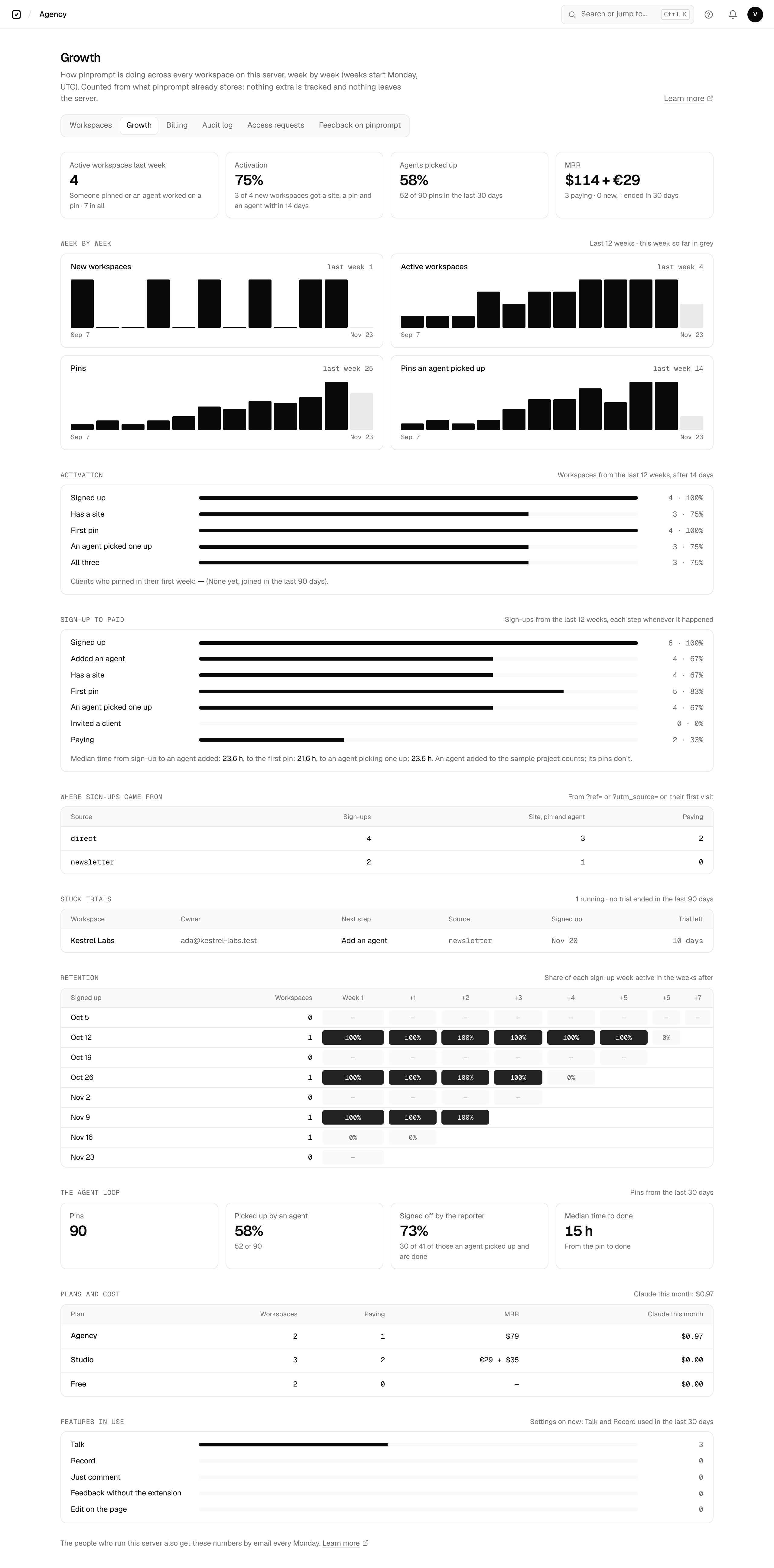
- Week by week: new workspaces (and access requests), active workspaces, pins, and pins an agent picked up, for the last 12 weeks. A workspace is active in a week when someone pinned in it or an agent worked on one of its pins.
- Activation: of the workspaces that signed up in those 12 weeks and have had 14 days, how many have a site set on a project, made a first pin, and had an agent pick a pin up (claim it, reply, change its status, ask a question or attach a fix; an agent filing a pin itself doesn't count) within 14 days. All three is the activation rate. Under it: how many clients who joined in the last 90 days pinned within their first week.
- Sign-up to paid: of the workspaces that signed up in those 12 weeks, how many have reached each step, whenever they did: added an agent (an agent connected to the sample project counts), set a site, made a first pin, had an agent pick one of their own pins up, invited a client, and pay. Under it, the median time from sign-up to the agent, the first pin and the first pickup.
- Where sign-ups came from: the same sign-ups by source, with how many got a site, a pin and an agent pickup and how many pay. The source is the
?ref=or?utm_source=on the visitor's first visit to pinprompt (https://your-server/?ref=newsletter), kept in a first-party cookie for 30 days and saved on the new workspace. Without one it reads direct. Nothing is sent anywhere, and invited people are never tagged. - Stuck trials: workspaces in their trial for at least 2 days, not paying, where no agent has picked up one of their own pins yet. Each row has the owner's email, the next step they haven't done (Add an agent, Add a site, First pin, Agent picks up a pin), the source and the days of trial left, soonest end first (amber at 3 days or fewer). Above it: how many trials are running, and how many of the trials that ended in the last 90 days pay now.
- Retention: one row per sign-up week for the last 8 weeks, and the share of those workspaces that were active in each week after.
- The agent loop: of the last 30 days' pins, how many an agent picked up, how many of those that are done the person who reported them signed off, and the median time from pin to done.
- Plans and cost: workspaces, paying ones and MRR per plan, next to what Claude cost them this month.
- Features in use: how many workspaces have Just comment, the review script, edit on the page and each integration turned on, and used Talk or Record in the last 30 days.
The numbers as JSON
GET /api/v1/operator/growth returns everything on this page as JSON, for a weekly report or a script. It takes an operator's signed-in session or a [report key](#report-keys). Personal tokens make only the extension's calls, so they get a 403. Anyone else gets a 404.
Report keys
A scheduled report or a conversion agent can't sign in, so it reads the numbers with a report key. Make one at the bottom of Growth, under Report keys: give it a name, such as Weekly conversion report, and choose Make key. The key starts with pp_rk_ and is shown once, so copy it into the job's secrets straight away. Then send it like this:
curl -H "Authorization: Bearer pp_rk_…" https://<this server>/api/v1/operator/growth
- A report key reads these numbers and nothing else. It can't sign in, change anything, or call any other page or tool, and any other route treats it as signed out.
- What it reads leaves out owner emails. Stuck trials keep the workspace's name, its next step and its source. To reach an owner, open the workspace in the console.
- The list shows who made each key, when, and when it was last used. Revoke stops a key at once. A key also stops working when the person who made it no longer runs the server.
- Making or revoking a key is kept in the event log. There can be at most 5 working keys at a time.
Weekly email
Every Monday from 07:00 UTC, the operators get last week's numbers by email: new and active workspaces, pins, activation, the agent loop, money and trials (running, stuck, and how many that ended pay), each next to the week before, with a link to Growth. It goes once per week, only to the operators. A server that starts later in the week sends its first one the next Monday. To stop it, set PINPROMPT_OPERATOR_DIGEST=off.
Audit log
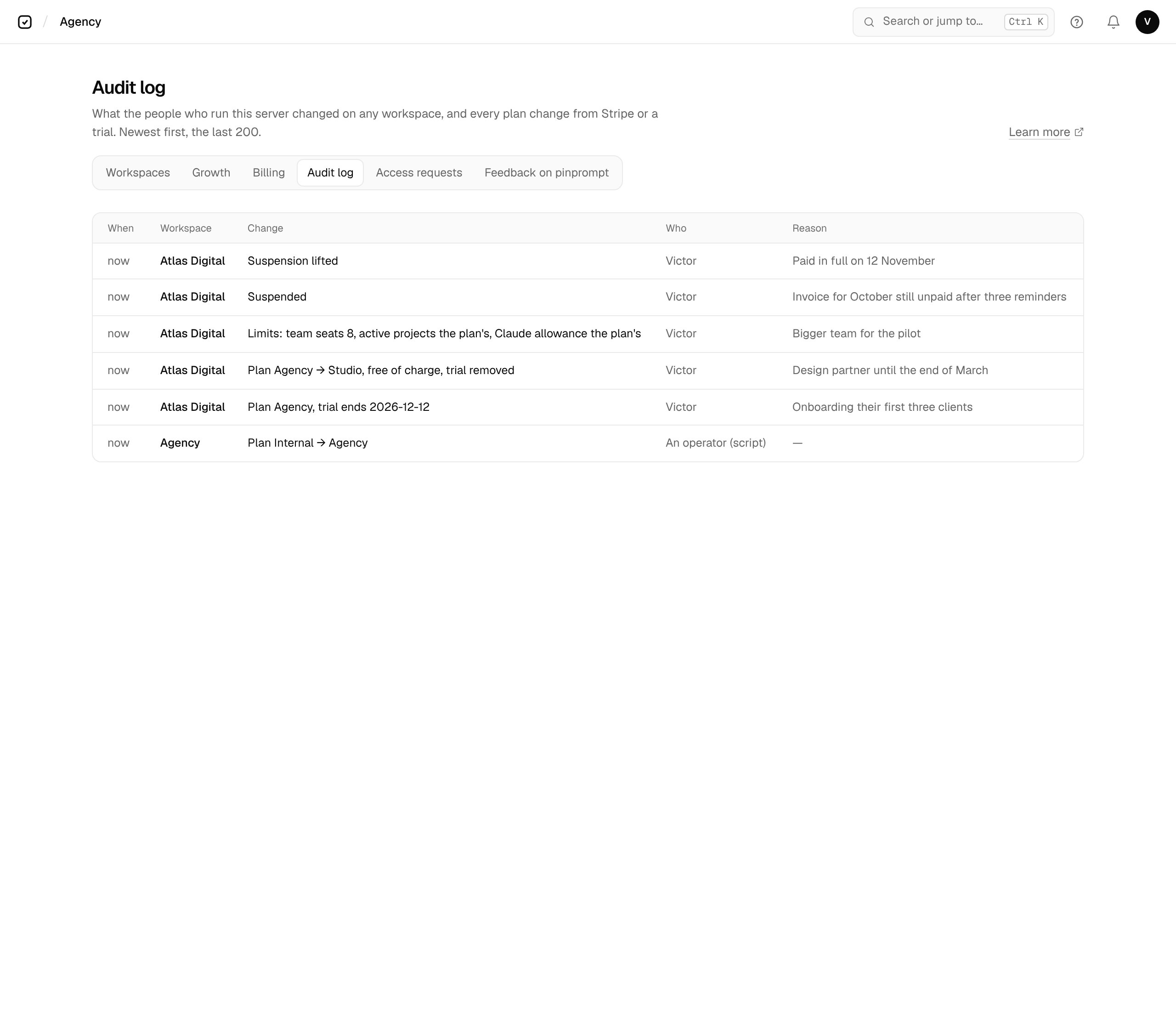
Audit log (/operator/audit) lists every change the operators made to any workspace, and every plan change from Stripe, a trial or the plan script, newest first: when, which workspace, what changed, who and why. Audit log on a workspace's page shows that workspace only. Making and revoking a Growth report key are listed too. A Claude cap an owner changed themselves isn't an operator's change, so it's on the workspace's timeline but not here.
Billing
Billing (/operator/billing) shows the money side of every workspace that pays through Stripe. It reads pinprompt's own copy of Stripe (the subscriptions Stripe's webhooks keep up to date, and the history of their changes), so it loads without calling Stripe. Invoices, refunds, cards, tax and payouts stay in Stripe: each row has Open in Stripe, which opens that customer in Stripe's dashboard (in test mode when the server uses a test key).
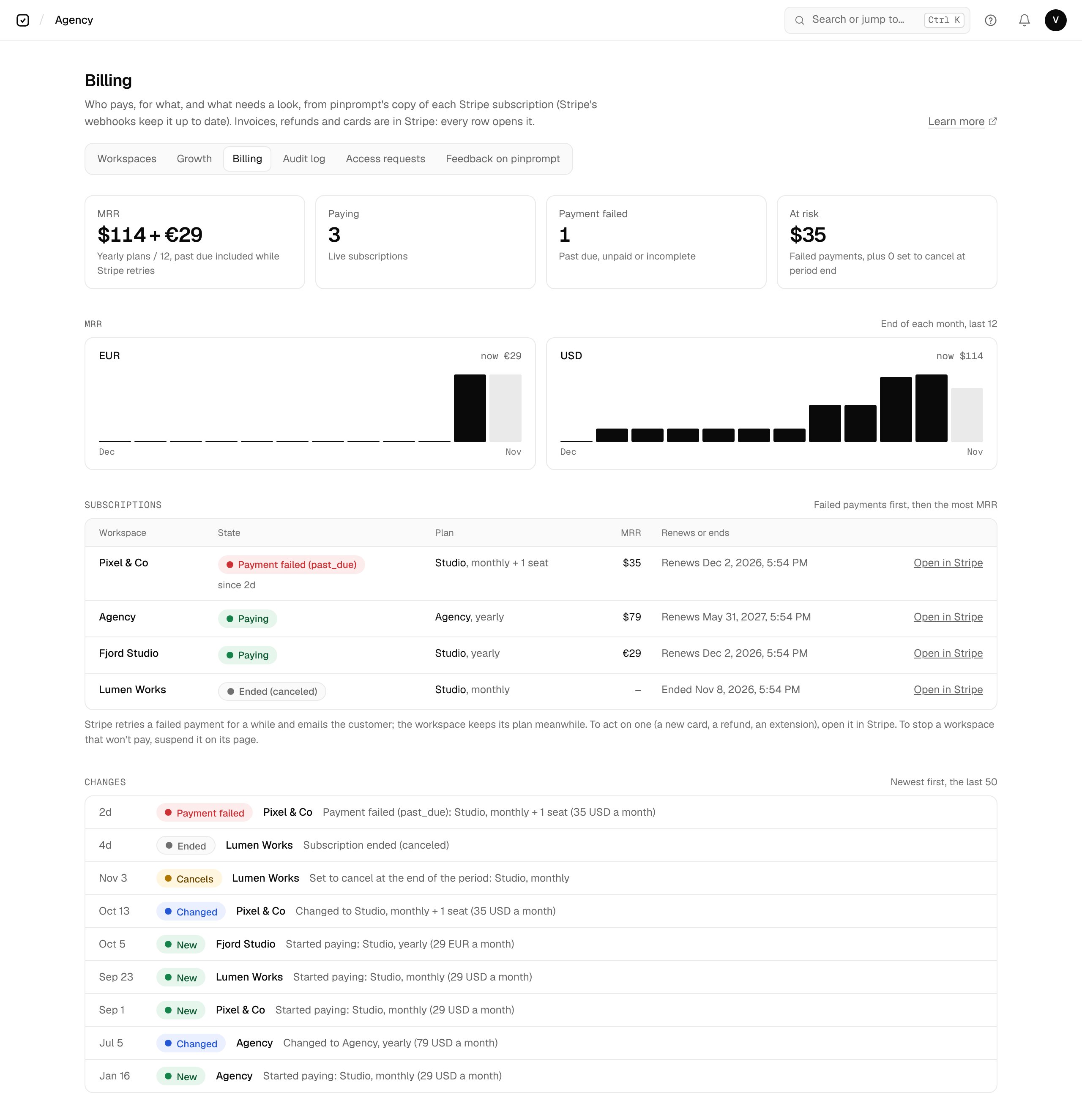
- Tiles: MRR per currency, paying workspaces, failed payments and the MRR at risk (failed payments plus subscriptions set to cancel at the end of their period).
- MRR by month: the MRR at the end of each of the last 12 months, per currency, rebuilt from the history of subscription changes. A subscription whose payment failed but that Stripe is still retrying (past due) still counts.
- Subscriptions: what needs a look first (a failed payment, then set to cancel), then by MRR. Each shows its plan, interval and extra seats, MRR, status and since when, and when it renews or ends.
- Changes: the last 50 changes across the server: started paying, plan or seats changed, payment failed, payment went through again, set to cancel, no longer cancels, and ended.
MRR counts a yearly plan as its price divided by 12, and currencies are never added together. Suspending a workspace doesn't stop its Stripe billing: the suspend dialog links to the customer in Stripe so you can pause or cancel it there. See Plans and billing.
Error reports
When PINPROMPT_SENTRY_DSN is set to a Sentry project's DSN, unexpected errors in the pinprompt server and in the pinprompt app's own pages go to that project. Each report is grouped by release, so you can see which version broke. Sentry's EU region (…ingest.de.sentry.io) keeps the reports in the EU. Without the setting, nothing is sent and errors stay in the server log.
A report holds:
- the error's type, message and stack;
- the pinprompt page or API path, without its query;
- the HTTP method;
- whether it happened on the server or in the browser;
- the release, and the ref shown on the error screen.
It never holds request or response bodies, headers, cookies, who was signed in, or anything from a customer's site or the extension. Only the first line of the message is sent, and never the values of a failed database query, which could be what someone wrote. Emails, tokens and long secret-looking strings are cut out of the message and the stack before sending. Refusals such as "not allowed" or "not found" aren't errors, so they aren't sent.
The browser never talks to Sentry, and the app loads no Sentry script. When a pinprompt page shows its "Something went wrong" screen to someone signed in, the page tells the pinprompt server, which sends the report on. Errors on signed-out pages aren't reported. At most one report per distinct error goes out each minute. Browser reports have their own small budget (10 a minute, 300 a day), separate from the server's (60 a minute, 2,000 a day), so they can never crowd out the server's own errors or use up your Sentry plan.
| Setting | What it does |
|---|---|
PINPROMPT_SENTRY_DSN | The Sentry project's DSN (https://<key>@<host>/<project>). Unset: no reports. |
PINPROMPT_SENTRY_ENVIRONMENT | The environment name in Sentry. Defaults to production; set staging on a staging server. |
Uptime
GET /api/health is the address an uptime checker calls (Better Stack, UptimeRobot, or your host's own health check). It answers 200 with {"ok": true, …} when the database answers and the background jobs that send email, notifications and integration updates are running. It answers 503 when either isn't. It says nothing about workspaces, people, settings or the version, so it is safe to leave public. Only a caller that sends PINPROMPT_HEALTH_TOKEN (the release gate) also learns the version and commit that are serving.
Point the checker at https://<your server>/api/health every minute and have it alert you by email. That covers the server being down, which the in-app health alerts can't tell you about.
FAQ
Can an operator see a customer's feedback? Not from the console's lists, and changing a plan or suspending a workspace doesn't open it either. To help with a problem, an operator can open a [support view](#support-view): read-only, 30 minutes at most, with a reason the workspace's owners see. An operator who is also a member of that workspace sees it there like any member.
Where do I refund or change a card? In Stripe. Billing shows who pays and what needs a look, and Open in Stripe takes you to the customer there; pinprompt never changes money itself.
We run pinprompt only for our own agency. Do we need this? No. The console works with one workspace too, and without plans or Stripe it simply shows no limits and no billing.