For reviewers
Install the extension
Add the extension from the Chrome Web Store and connect it to your account.
The Chrome extension is how you pin feedback. It works in Chrome and other Chromium browsers (Edge, Brave, Arc).
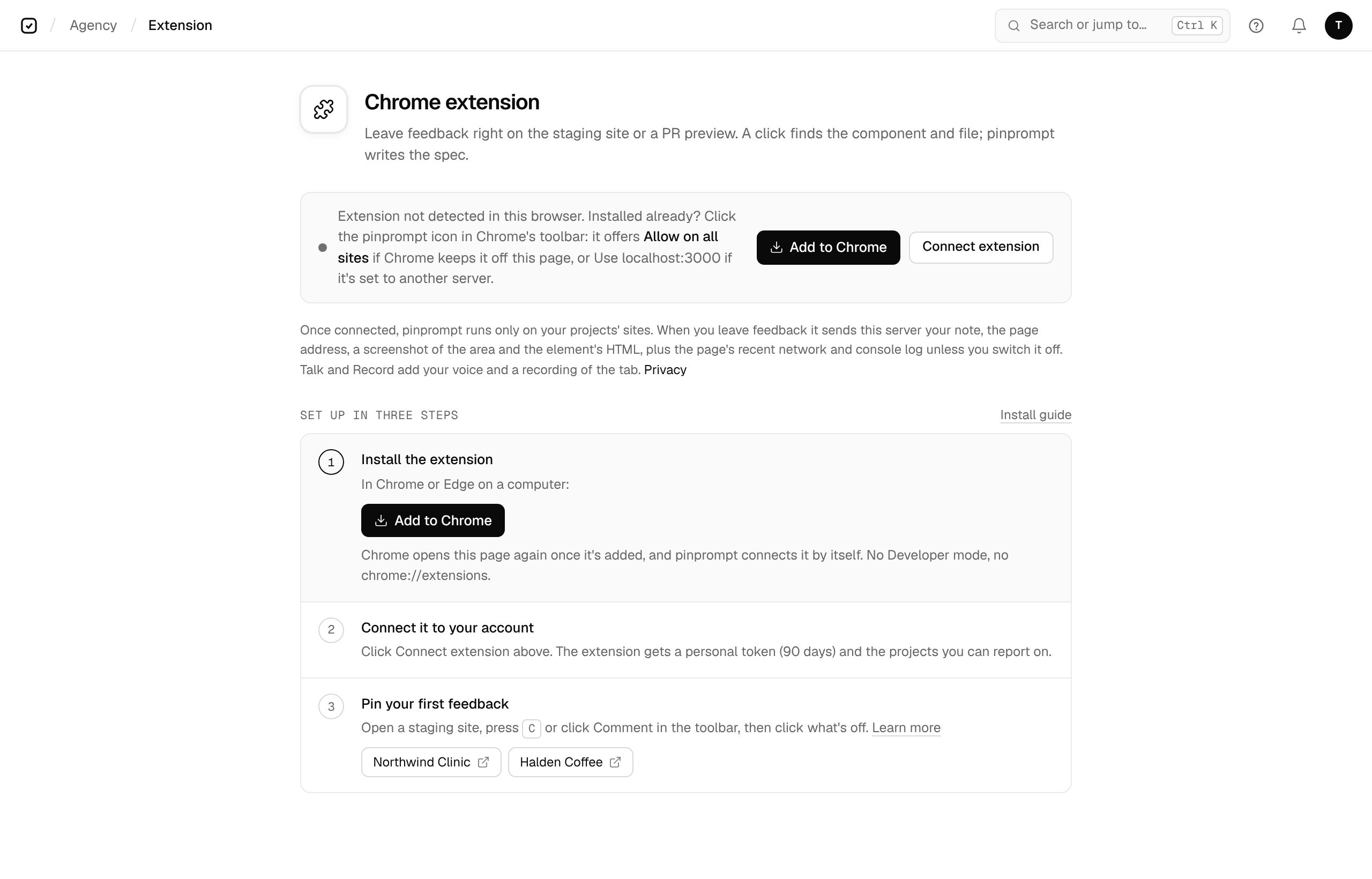
Install
- 1.Open /extension on your pinprompt and click Add to Chrome. It opens the extension in the Chrome Web Store; click Add to Chrome there and accept Chrome's prompt.
- 2.Chrome opens /extension again by itself. It finds the extension and connects it to your account, with no second click. (If you aren't signed in, sign in and click Connect extension.)
That's all: no chrome://extensions, no Developer mode, no setting to find. Chrome keeps it up to date on its own.
Pin it from the puzzle-piece menu in Chrome's toolbar so it's one click away. Chrome doesn't let extensions pin themselves, so this is the one step that stays yours; the page and the popup remind you while it isn't pinned.
Installed it unpacked before? Remove that copy (right-click its icon → Remove from Chrome), then add it from the store. The unpacked copy doesn't update.
What the extension page tells you
The bar at the top of /extension checks this browser live:
| It says | What it means | The fix |
|---|---|---|
| Connected (green) | Installed, signed in, allowed on your sites | Nothing. Open a staging site. |
| Extension installed, not connected yet | Chrome has it, it has no token | Connect extension |
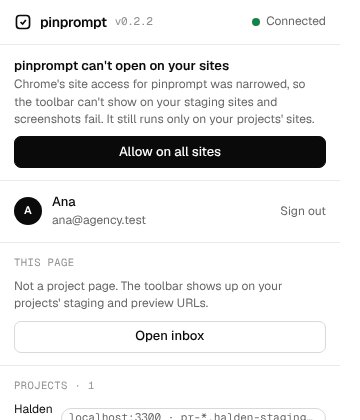
| Installed, but Chrome limits its site access | Someone narrowed the extension's site access in Chrome | Allow access: the extension opens a small window, click Allow on all sites and accept Chrome's prompt |
| Extension not detected | Not in this browser, or Chrome keeps it off this page too | Add to Chrome, or click the pinprompt icon: its popup offers the fix |

Site access
The extension asks Chrome for access to all sites when you install it, because your projects' staging and preview addresses are set in pinprompt, not in the extension, and Chrome only lets an extension take a screenshot of a tab with that access. It still runs only on your projects' sites and on pinprompt.
If someone sets its Site access to On click or On specific sites in Chrome, screenshots fail: Chrome only lets an extension take one with access to all sites. With On click the toolbar can't open on staging either; with On specific sites it opens on the sites listed, and the popup says it's only the screenshots. The icon then shows !, and its popup leads with Allow on all sites: one click and Chrome's prompt, nothing to find in chrome://extensions.
What Chrome still decides
- Pinning the icon to the toolbar: only you can, from the puzzle-piece menu.
- Incognito windows: extensions are off there until you switch on Allow in Incognito in the extension's details. pinprompt doesn't need it.
- Phones and tablets can't run extensions. Use the review link instead, or open pinprompt on a computer.
- Without the store: Chrome only adds an extension from outside the Chrome Web Store in Developer mode. See below.
Without the store
If your pinprompt has no store link yet (the page shows Download instead of Add to Chrome), load it yourself: unzip the download to get a pinprompt folder, open chrome://extensions, switch on Developer mode (top right), click Load unpacked and pick the folder. These are the only steps that need chrome://extensions, and they go away once whoever runs pinprompt sets PINPROMPT_EXTENSION_STORE_URL to the store listing (Run pinprompt).
Connect
After a store install, Chrome opens /extension and it connects by itself. Otherwise go back to /extension in the same window: it notices the extension within a second or two and offers Connect extension; click it and pinprompt hands the extension a personal token. The page then shows how many projects you can report on. Tokens last 90 days; connecting again replaces the old one.
The token only does what the toolbar does: leave and read feedback, comment, answer, sign off, close or reopen a pin you may close (your own, or any as an owner, developer or PM), and delete your own feedback while nobody has picked it up. It can't change settings, export a project, archive or delete one, or triage, even for an owner. Those stay in pinprompt, signed in. So a token that leaks from the browser can't change your projects or take their data.
Check it
Open your project's staging site. The pinprompt toolbar appears at the bottom of the page with the pins already there. If it doesn't, the address isn't one of the project's URLs: ask an owner to check Settings → General → Site URLs.