For clients
Client guide: feedback in Sanity Presentation Beta
For clients who edit their content in Sanity Studio. Press Give feedback above the preview and point at what looks wrong, with nothing to install.
If you edit your site's content in Sanity Studio, you can give feedback right where you look at the preview, in the Presentation tool. Nothing to install. The team adds the button for you; if you don't see it, ask them.
1. Press Give feedback
Open Presentation in your Studio and go to the page you want to comment on. Press Give feedback at the top right, above the preview.
The first time, a small window opens and asks you to sign in with your email (Getting started). It closes by itself and the feedback bar appears at the bottom of the preview. The button now says End feedback.
If you signed in with the emailed link, it opens in a new tab. Go back to the Studio and press Give feedback again: now it goes straight through. If nothing opens, your browser blocked the window: allow pop-ups for your Studio and press it again.
2. Point at what looks wrong
Press Comment on the bar, click the thing you mean in the preview, write what you'd like instead and press Continue, then Send. You can paste a picture into the note, or press Image.
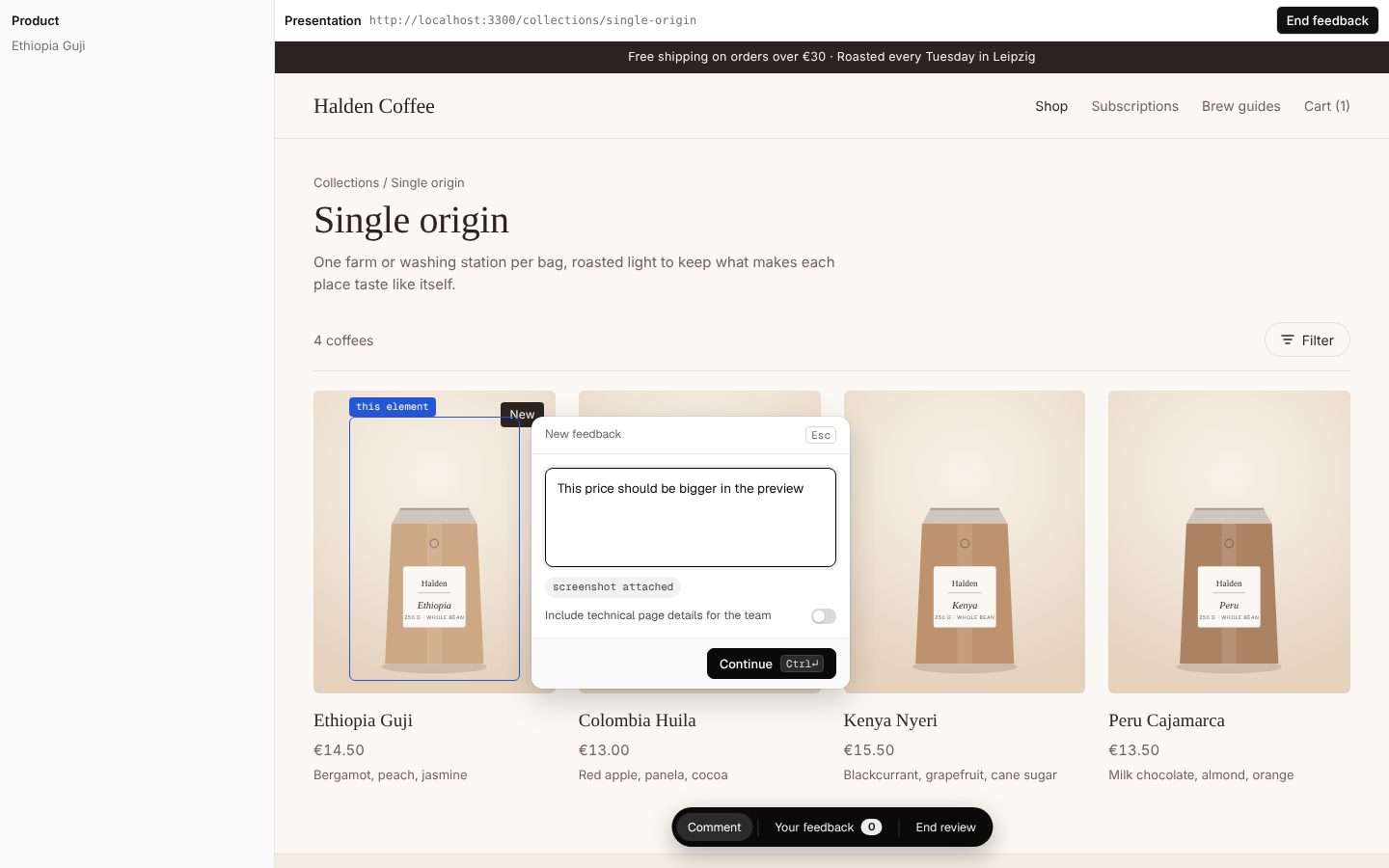
The screenshot shows your site, never the Studio around it. While you're commenting, clicks pin feedback instead of opening fields, so you won't change content by accident.
3. Finish
Press End feedback at the top, or End review on the bar. Moving between pages in the preview keeps it going.
Good to know
- Your reports and the team's replies are in Your feedback in pinprompt, the same as from the site: Checking a fix.
- Screen recording and voice notes don't work inside the preview. Open the site from Your feedback for those.
New: this has only been tried in a test Studio so far. If anything looks odd, tell the team.