For reviewers
Pin feedback
Comment on an element, talk while pointing, or record the tab. What gets captured, and how to write feedback an agent can fix.
With the extension connected, open the staging site or a PR preview. The toolbar sits at the bottom of the page.
Comment on an element
- 1.Press
Cor click Comment. - 2.Move the pointer: the element under it is outlined with its component name. Click it.
- 3.Write what's off, the way you would in Slack.
Ctrl+Enter(⌘↵on a Mac) drafts the spec. If the project uses Just comment, or you pressed Skip the AI draft, it sends the note as it is instead, and step 4 is skipped.
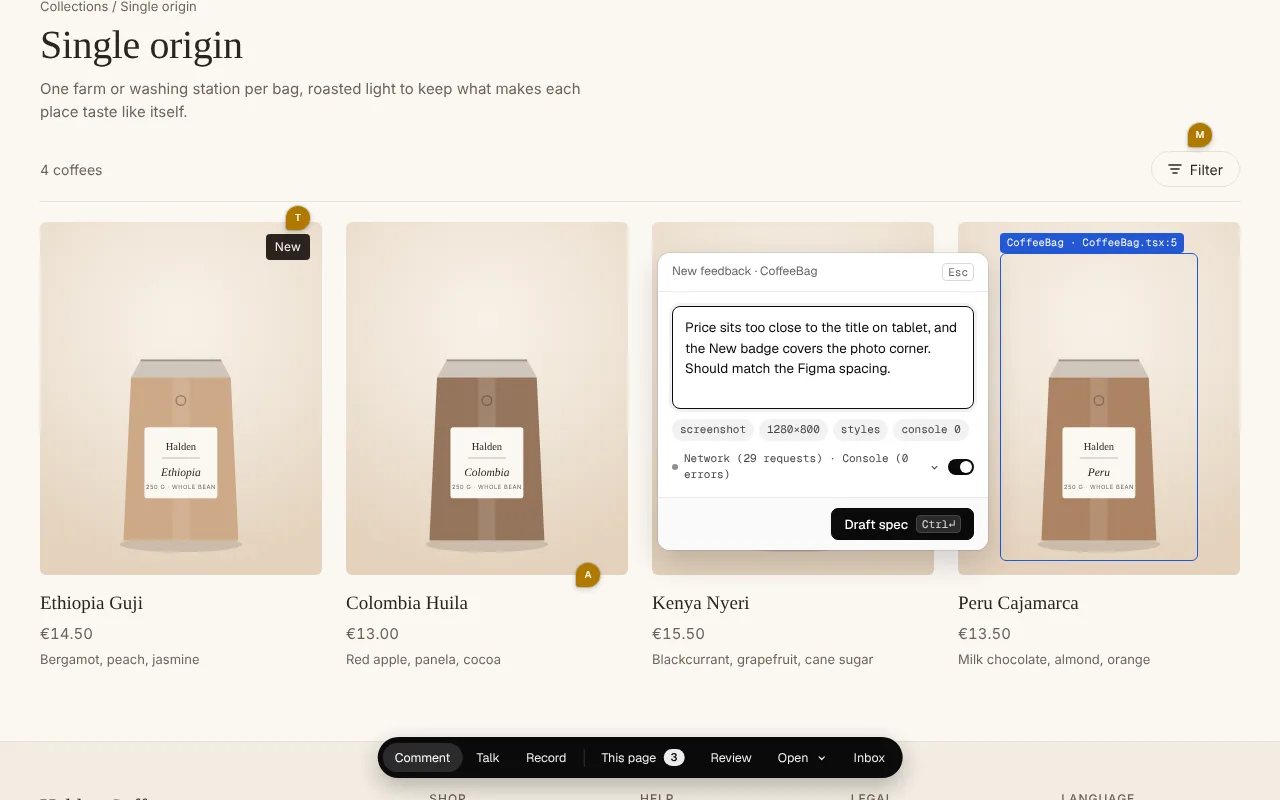
While you pick, the toolbar steps aside so you can reach anything at the bottom of the screen (a chat button, a cookie bar, a sticky "Add to cart"), and a hint at the top says what to do. Press Esc, or tap Esc in the hint on a phone, to stop. The page stays as it is under the pointer:
- Menus that open on hover: hover the menu open, press
C, then click the item in it. - Web components: the button or text inside the component is picked, not the whole component.
- Embedded frames (a form or a video from another site): the whole frame is picked. Say in your note which part you mean.
- 1.Read the draft: the title, what you saw, what you expected, and the checks that say it's fixed. Answer any question it asks, edit what's wrong, then Send.
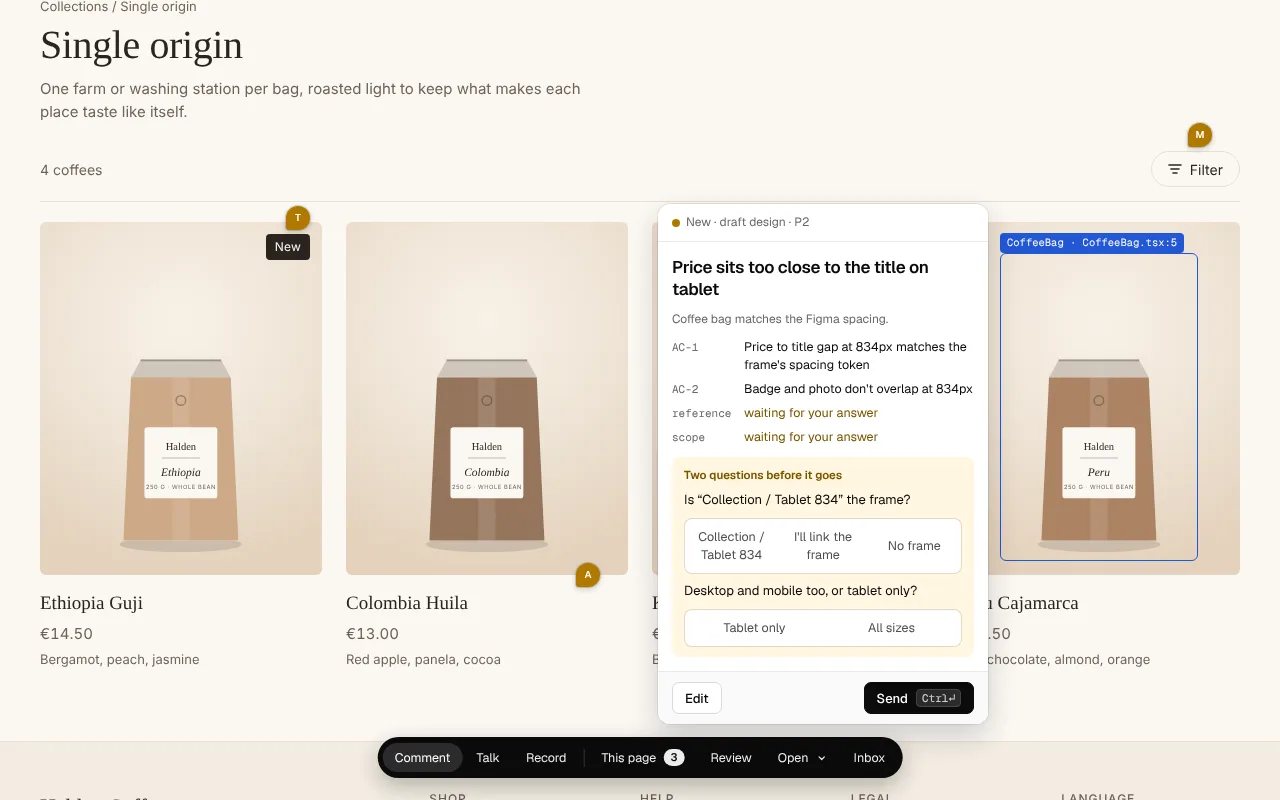
When a question, a slow draft or Send gets in the way
- None of the suggested answers fit? Type your own in the line under them and press Enter.
- Answering a question finishes the draft you're reading: the title and the other question stay as they are, and nothing is drafted from scratch. Press Enter after a typed answer, or just press Send: a typed answer goes with it either way.
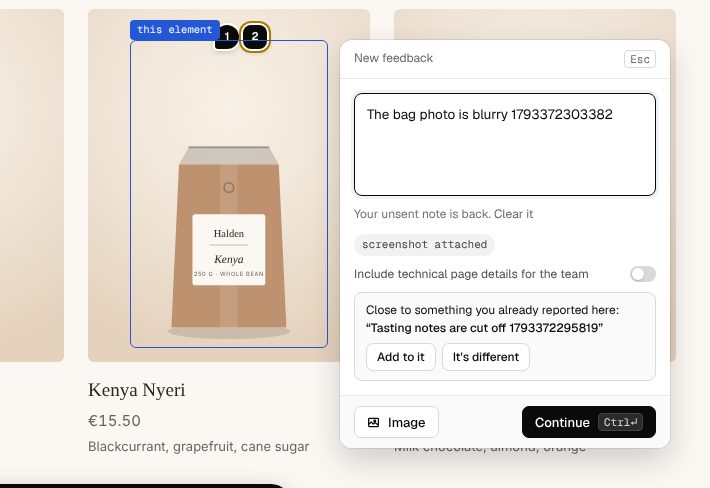
- Esc, the X at the top of the popover, or Comment again, keeps your note. The next time you comment on the same page, it's back in the box with Clear it next to it, for a day.
- A slow draft says "Claude is taking longer than usual…" after 10 seconds. After 25 seconds you get the rule-based draft instead, so you're never stuck. While it drafts, the note can't change under it.
- If Send fails ("pinprompt didn't answer. Your note is still here, so try again."), press Send again. If the first one did arrive, you get that item, never a second copy.
What goes with it
- A screenshot of the page and the element, its styles and size, and the screen width.
- Any reference images you paste, drop or add with Image: the old site, a competitor, a mock. They go along as what you mean, never as the current page.
- A text change, when the project has Edit text on the page on (beta): the wording you typed into the element, with the text it replaced.
- For the team only: the component, and on Next.js sites with
@pinprompt/nextthe source file and line. - If the project allows it: the page's failed or slow network requests and console errors from the last two minutes, with tokens and cookies removed. You can leave them out before sending.
Clients get a simpler toolbar and never see the technical parts.
Talk and Record
| Mode | How | Status |
|---|---|---|
| Talk | Hold T and speak while you point; clicks mark what you mean. Transcribed in the browser. | Beta |
| Record | Press R to record up to 60 seconds of the tab while you narrate. A full page load ends the recording. | Beta |
Talk and Record have only been tested with scripted speech so far. Use Comment for anything important until they've been tried on real sessions.
Drawing while you record
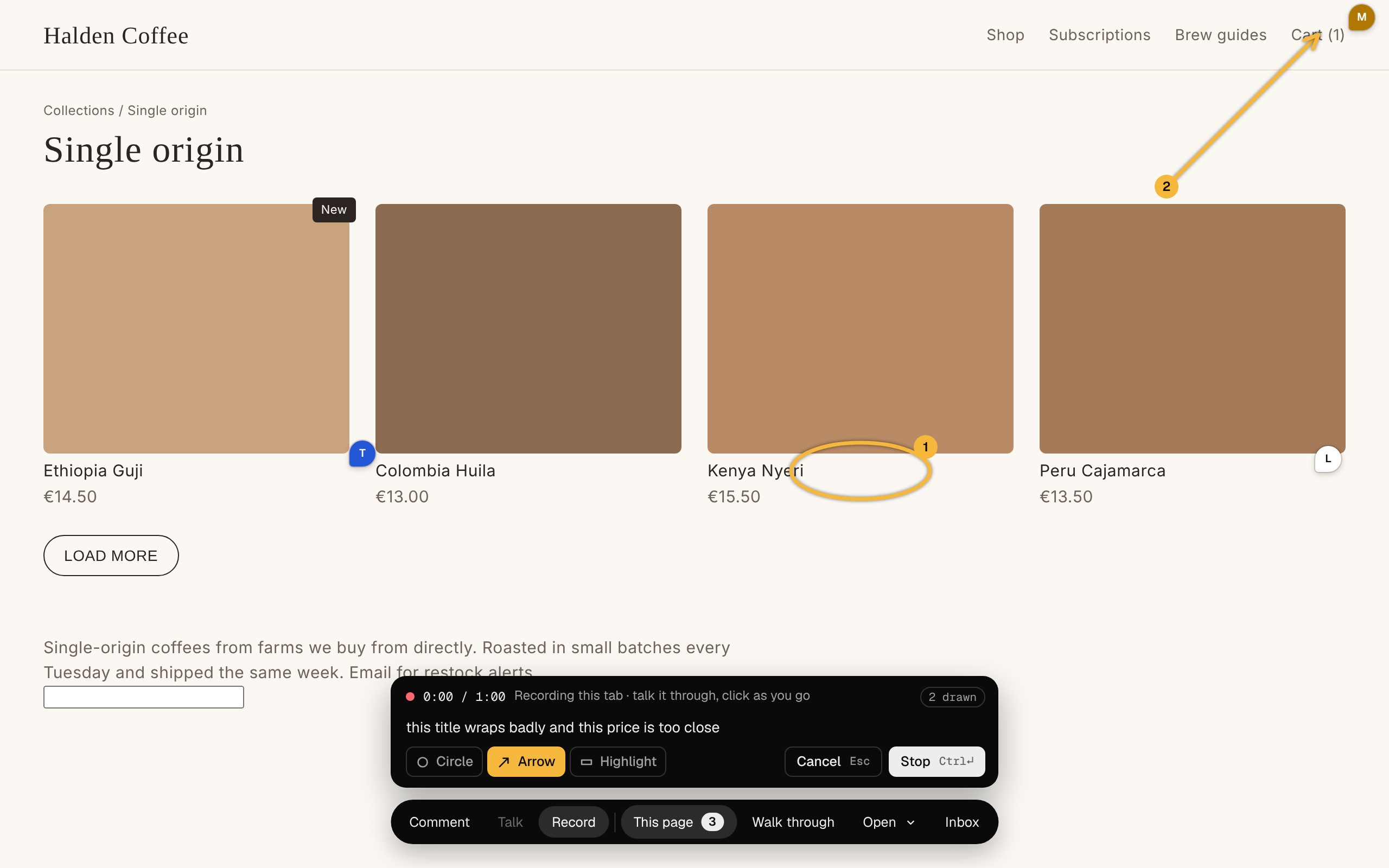
While Talk or Record runs, team reviewers can mark what they mean. Pick Circle, Arrow or Highlight in the live panel (or press D for the last one), then drag on the page. Each drawing is numbered, stays on the page for three seconds (so it's in the recording too) and is tied to the exact element under it: the circle's centre, or the arrow's head. While a tool is on, the page doesn't take clicks; press the tool again or D to go back to clicking.
Claude treats a drawing as "this one" on purpose: it picks the drawn element over what you clicked or hovered, and a new drawing on something else starts a new item when one recording covers several problems. The item page draws the marks over the video at the moment you made them. Drawings go through the same masking as clicks. Clients keep today's toolbar without drawing tools.
Write feedback an agent can fix
- One problem per pin. Two problems become two items.
- Say what you expected, not just what's wrong: "price should sit 16px under the title", "button should say Add to bag".
- Name the screen if it only happens on one: pinprompt records the width, but "only on tablet" saves a question.
- Quote exact text for copy changes, in quotes:
"€30" → "€40".
Questions after you sent it
A reply that answers the question, Answer for them and Dismiss, the question shown once on the pin and the line to type your own answer are in pinprompt since 0.4.5. On a pin's card in the extension they need extension 0.2.4.
When your note doesn't say yet what's wrong or what it should do, pinprompt asks, and the item shows Question. That's common for feedback about how something works rather than how it looks: "What should the commission number field do instead?" The question shows once, in the amber box on the pin's card and the item page.
- Answer it with a suggested answer, your own words in the line under it (there is always one, in case none of the suggestions fit), or simply a Reply in the thread. While one question to you is open, your reply is the answer. With two open, answer each in its box, so it's clear which is which. A reply that asks something back, or an internal note, isn't an answer.
- Agents see it too. An agent that asked (over MCP) reads the answer, or that the team dismissed its question, in
get_specandlist_feedback. - The team can answer for you (on the card it reads Answer for them), or Dismiss a question nobody needs answered, for example when the team already knows what's meant. A dismissed question stays on the thread, marked dismissed, and the spec doesn't change. Only people who triage (owner, developer, PM) can dismiss.
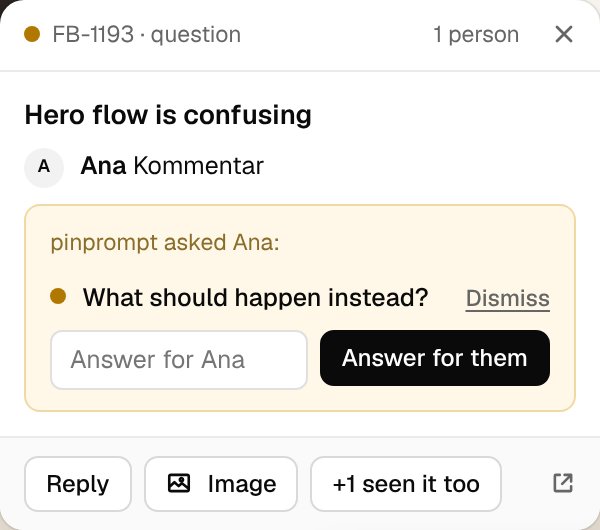

- When no question is left, the item moves on: after an answer, to Agent ready or Ready to approve when the spec allows it, else Needs triage; after a dismissal, to Needs triage so a person decides who fixes it, or back to Agent ready when an agent asked while working on it (it goes on from the spec as it stands).
Titles describe what the feedback is about (Commission number field in cart), never judge it: a title never says problem unclear.
See what's already there
Pins mark existing items on the page; click one to read its thread or reply. Your own test pin or mistake can be deleted from its card with the bin, while nobody has picked it up (Deleting feedback). If your note looks like an open item, pinprompt says so and you can add to it instead of filing a duplicate.
Which page a pin is on
A pin belongs to the page's address without the part after ? or #. Ids in the address stay, so every order, product or account page keeps its own pins: a pin on /account/orders/0012345678 shows on that order, not on /account/orders/0099999999. Only what looks like private data or a secret is hidden from the address: emails, tokens and keys, and the code in a reset or invite link (/invite/…). Pages that pick what they show by ?… (/product?id=12) count as one page, so a pin from another product is listed as Can't find where this was rather than drawn there.
The team and the client see the same page's pins, with one difference: a client sees the pins they left and the ones they added a +1 to, not the team's.
How a pin finds its element again
A pin remembers the element it was left on (for the team: where it is in the page and in the code; for clients: only its text, since the rest reveals code) and where on the page it was. When the same words appear more than once, say a heading and a menu or footer link that both read Single origin, the pin goes back to the one nearest where it was left, so it never jumps to another element with the same text.
Every open item of the page is in This page (the Open menu), pin or not:
- Not showing now: what it's on is hidden for the moment (another carousel slide, a closed tab or menu). The pin comes back when it shows.
- Can't find where this was: the element isn't on the page any more, or the page shows something else at the same address (sites that switch pages by
#…or?…). No pin is drawn over the wrong thing; open it from the list.
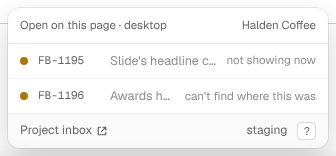
- At other sizes: items filed at another screen width. The toolbar says so ("This page 0 · 5 at other sizes") when none are at this width.
While you record the tab, the other pins are hidden so they aren't in the video.